HEADCOUNT / Mobile

Good work happens out in the field.

Give your team the details they need, right where they work. Open assignments, capture notes, scan equipment, and keep everyone updated from a phone.
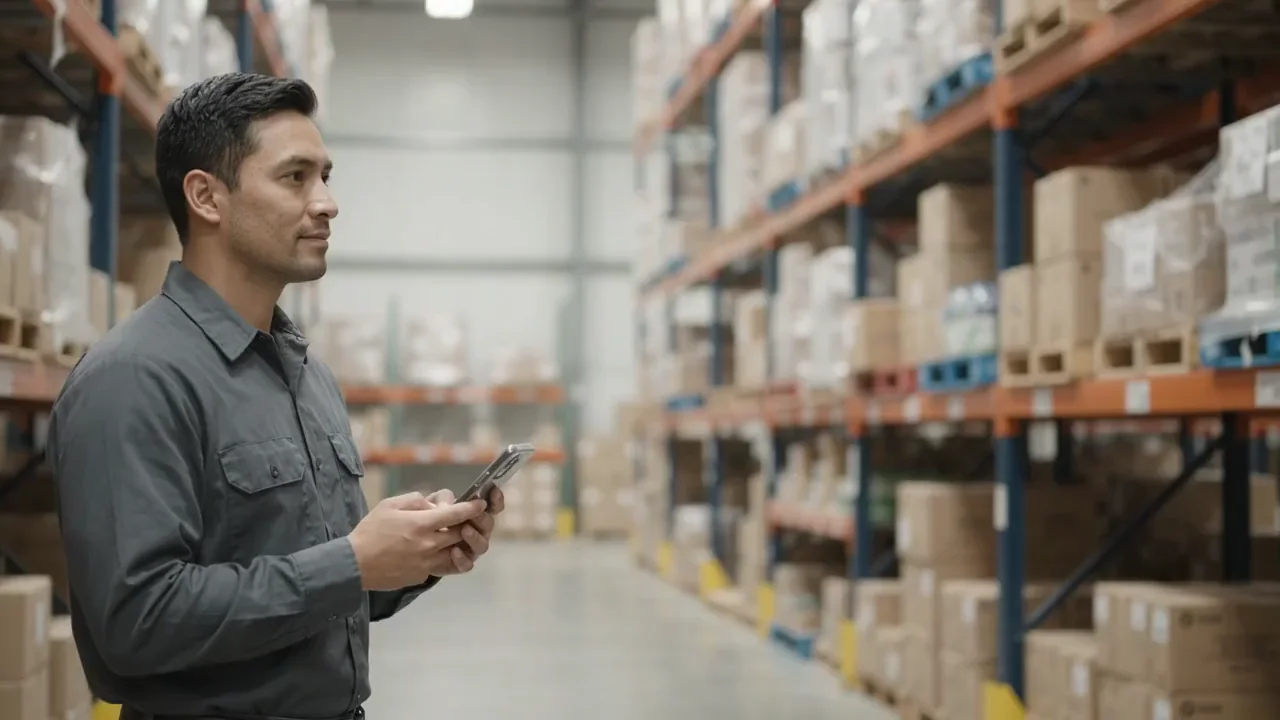
From the desk. To the floor. All connected.

THE WORK GOES WITH YOU.

A phone in the field. A connected team.

Workflow: Ready in the field. Keep the team in sync. The right asset. In reach..

BUILT AROUND YOUR NEXT MOVE

Less walking back.
More getting it done.

At the equipment, down the hallway, or between buildings. Take the context with you and leave a complete record behind.

MOBILE WORK ORDERS

Create, update, and complete work orders right from your phone. Attach photos, add notes, and notify your team — all without leaving the field.

  • Create work orders instantly from your phone with photo attachments
  • Real-time status updates and team notifications
  • View and track work orders on interactive maps
Explore Mobile Features ↗

HEADCOUNT / ON THE MOVE

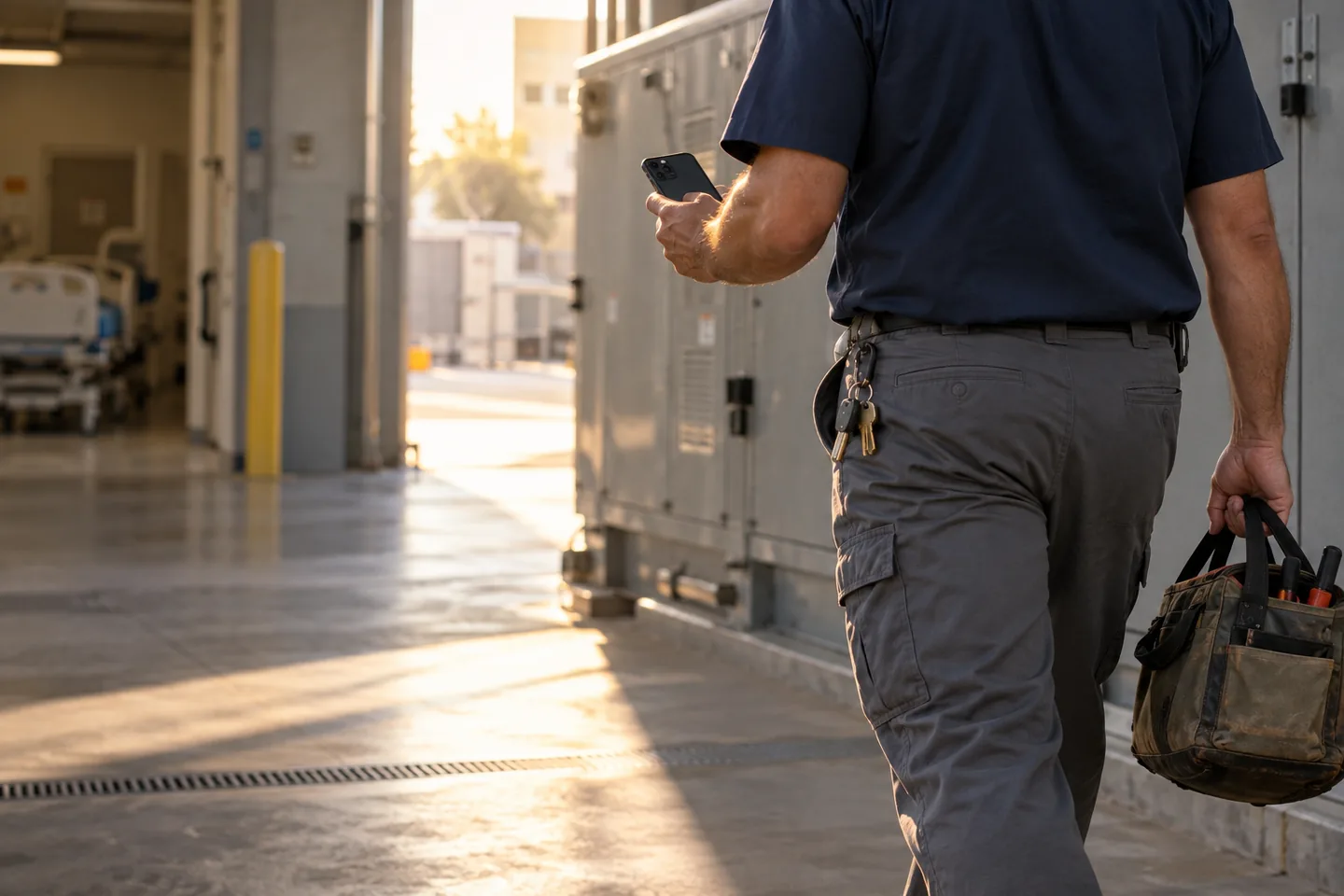
Close view of a maintenance worker carrying a phone and tool bag through a sunlit hospital service bay
9:41▮▮▮
My workJD
MAIN CAMPUS / MECHANICAL ROOM

Inspect air handler

Assigned to you
EQUIPMENT RECORDAHU-04

Main Campus


Monthly inspection

Maintenance team

Check the filter and housing. Capture the condition before closing the job.

Filter inspected
Housing checked
Add a note from the field...
▣Add a photo
Complete work order
Hospital rooftop air handlers and a rain-darkened walkway at blue hour, with a distant worker near a warmly lit doorway
✓
COMPLETED ON SITEA useful record. Without the return trip.

CAPTURE IT WHILE YOU ARE THERE

The work is in the field.
The whole team stays connected.

Work orders, preventive checks, and inspections are easier to follow when the details are captured where they happen.

Show what you found.

Attach photos and service notes to the work order.

Know what you are working on.

Scan an asset for its history and upcoming inspections.

Keep the office in the picture.

Share status updates so your team can follow progress from their desktop.

See the view from the desk ↗

PHONE OR TABLET / iOS & ANDROID

Your workspace goes with you.

A FEW MORE DETAILS

Good questions.
Clear answers.

What devices does the HeadCount mobile app support?
HeadCount's mobile app is available natively on both iOS and Android. It's optimized for phones and tablets, and works on all modern devices. The app is available for download from the App Store and Google Play.
How do push notifications work?
HeadCount sends push notifications for new work order assignments, status changes, overdue tasks, and escalations. Each user can customize their notification preferences by type and priority level. Administrators can set escalation rules to ensure critical issues are never missed.
How does barcode scanning work on mobile?
Simply open the HeadCount app and point your phone's camera at any asset barcode or QR code. The app instantly pulls up the asset's complete profile — including maintenance history, upcoming inspections, active work orders, and documentation. You can trigger a new inspection or create a work order directly from the scan result.
What are QR code web portals?
HeadCount lets you generate QR codes for any location in your facility. When someone scans the code with their phone camera, they're taken to a mobile-friendly web form where they can submit a maintenance request — no app installation required. The form auto-fills location details based on the QR code, making submissions fast and accurate.
Does the mobile app have the same features as desktop?
The mobile app is optimized for field work — work orders, inspections, barcode scanning, notifications, and photo documentation. For administrative tasks like analytics dashboards, floor plan management, and system configuration, the desktop platform provides the full feature set. Both platforms sync in real time.

LET’S PUT IT TO WORK

A better day starts
with a clearer picture.

See how mobile fits your team’s day.

View pricing